 Minform
Google Analytics
Minform allows you to track visitor behavior and form submissions using Google Analytics 4 (GA4). This integration automatically sends events to your GA4 property when users interact with your form.
NOTE : This feature is available on Pro and Business plans.
How to Connect
- Open your form in the Minform dashboard.
- Go to the Connect tab.
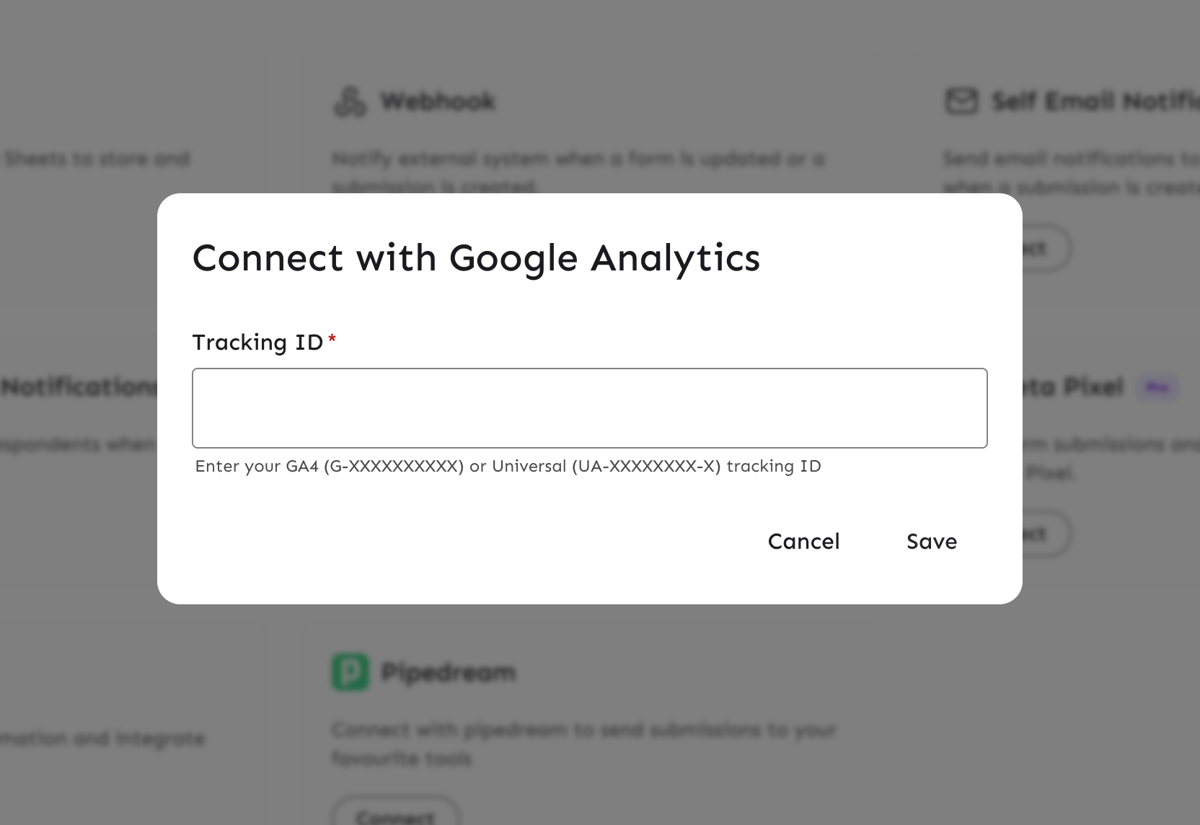
- Click on Google Analytics.
- Enter your Tracking ID (Measurement ID).
- Format:
G-XXXXXXXXXX(GA4) orUA-XXXXXXXX-X(Universal Analytics).
- Format:
- Click Save.
Tracked Events
Minform automatically sends the following events to Google Analytics:
1. Page Views
- Event Name:
minform_page_view - Trigger: Fired when a user loads the form or navigates to a new page within the form.
- Parameters:
event_category: The URL of the form.event_label: The page number (e.g., "Page 1", "Page 2").
2. Form Submissions
- Event Name:
minform_submit - Trigger: Fired when a user successfully submits the form.
- Parameters:
event_category: The URL of the form.event_label: The name of the form.
Setting up Custom Dimensions
To see the event_category and event_label details in your GA4 reports, you must register them as Custom Dimensions.
- Go to your Google Analytics dashboard.
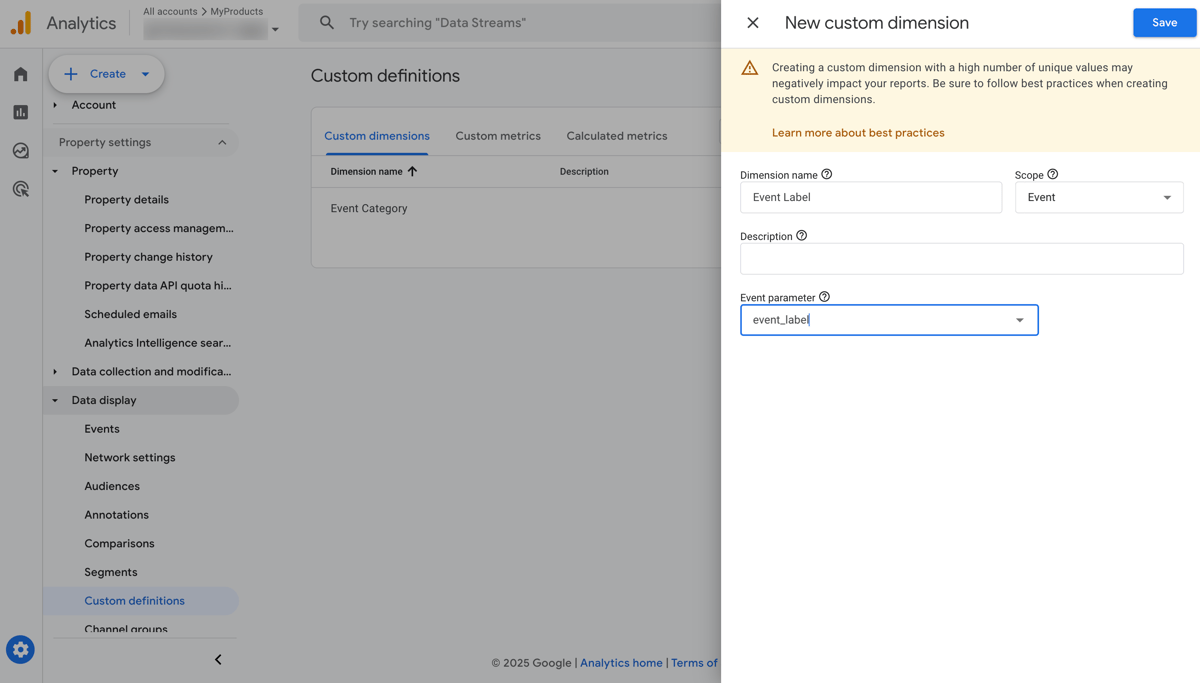
- Navigate to Admin (gear icon) > Data display > Custom definitions.
- Click Create custom dimension.
- Create the following two dimensions:
Dimension 1:
- Dimension name:
Event Category - Scope: Event
- Description: Form URL
- Event parameter:
event_category
Dimension 2:
- Dimension name:
Event Label - Scope: Event
- Description: Page number or Form name
- Event parameter:
event_label
GA4 Custom Dimension Setup
Once set up, you can use these dimensions in your reports and explorations to analyze form performance.
Verifying the Integration
To verify that events are being sent:
- Open your form in a new tab.
- Go to your Google Analytics dashboard.
- Navigate to Reports > Realtime.
- Interact with your form (change pages, submit).
- You should see
minform_page_viewandminform_submitevents appearing in the "Event count by Event name" card.