 Minform
Add Media to Questions
You can attach media (images, audio, or video) to any question element. The media appears below the question label and above the answer options or input field.
Supported media types
- Images — Upload directly (JPG, PNG, WebP, GIF, SVG)
- Audio — Upload MP3, WAV, OGG, AAC files (max 10 MB)
- YouTube / Vimeo — Paste a video URL
- Direct video / audio URLs — Paste a link to any hosted media file
How to add media
- Select any question element in the editor
- In the sidebar under Config, find the Question Media section
- Choose one of the three options:
- Image — Opens the image picker to upload or generate with AI
- Audio — Opens a file picker for audio files
- URL — Paste a YouTube, Vimeo, or direct media URL
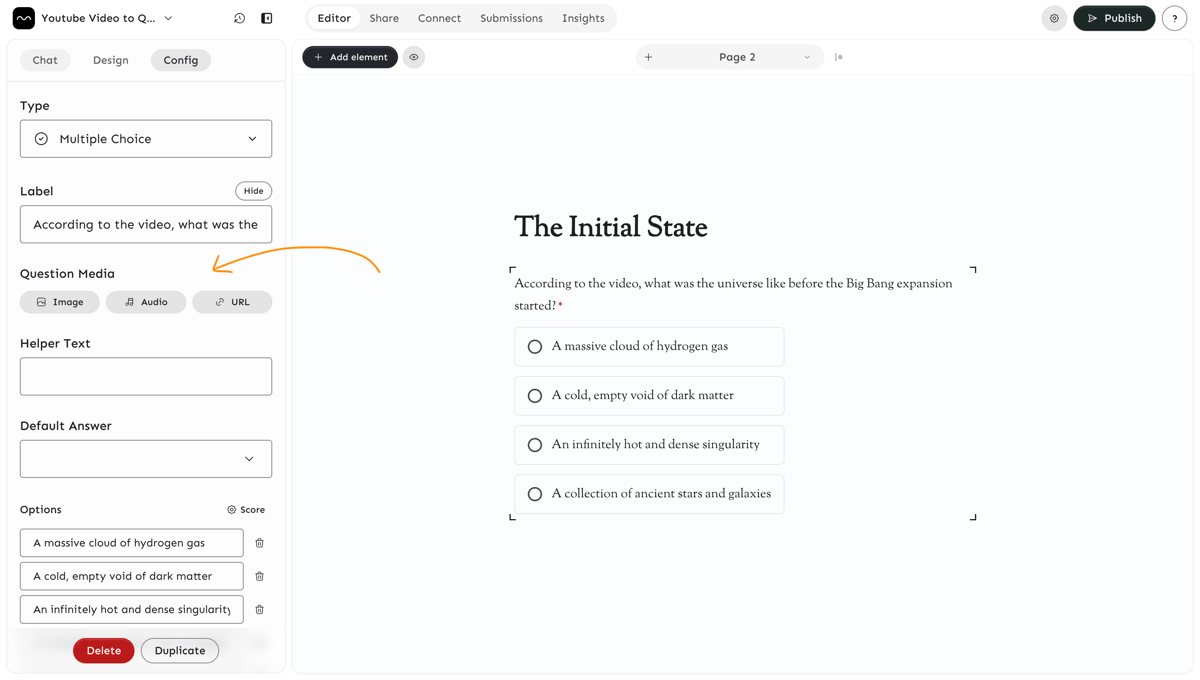
- Once added, the media appears in the editor preview and on the live form
Adjust alignment and size
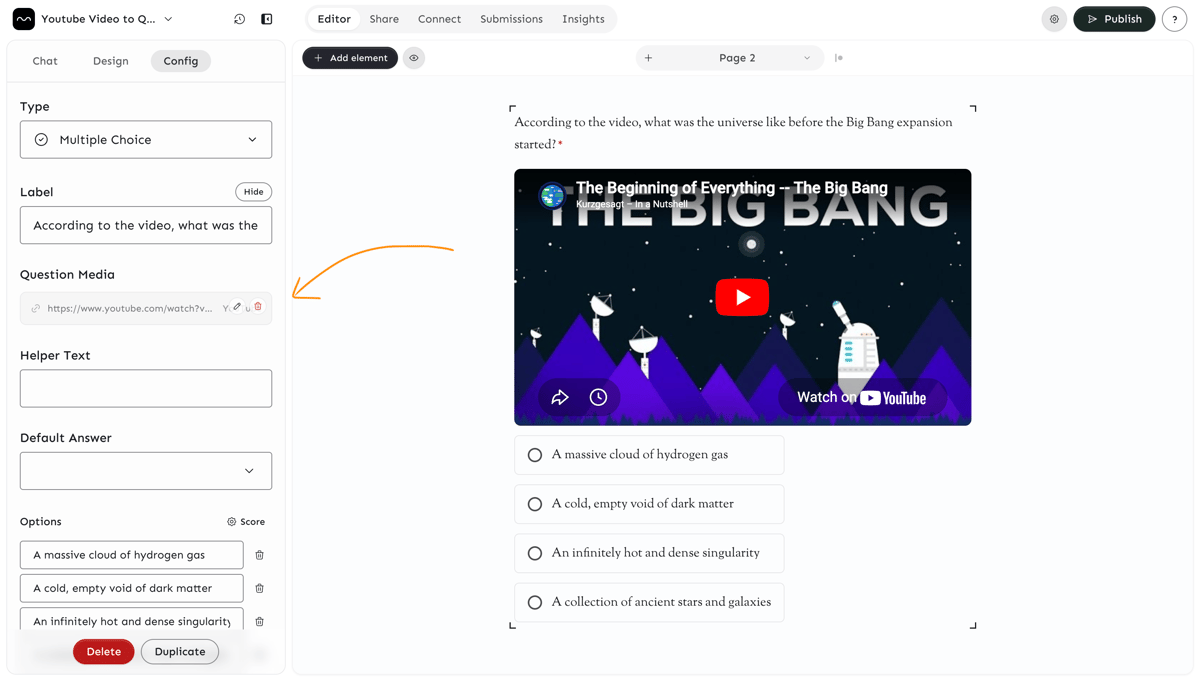
- Click the pencil icon on the media preview in the sidebar
- The preview flips to show settings:
- Alignment — Left, center, or right
- Width — Drag the slider to resize (20%–100%)
- Alt Text — Description for accessibility
- Click Back to return to the preview
Remove media
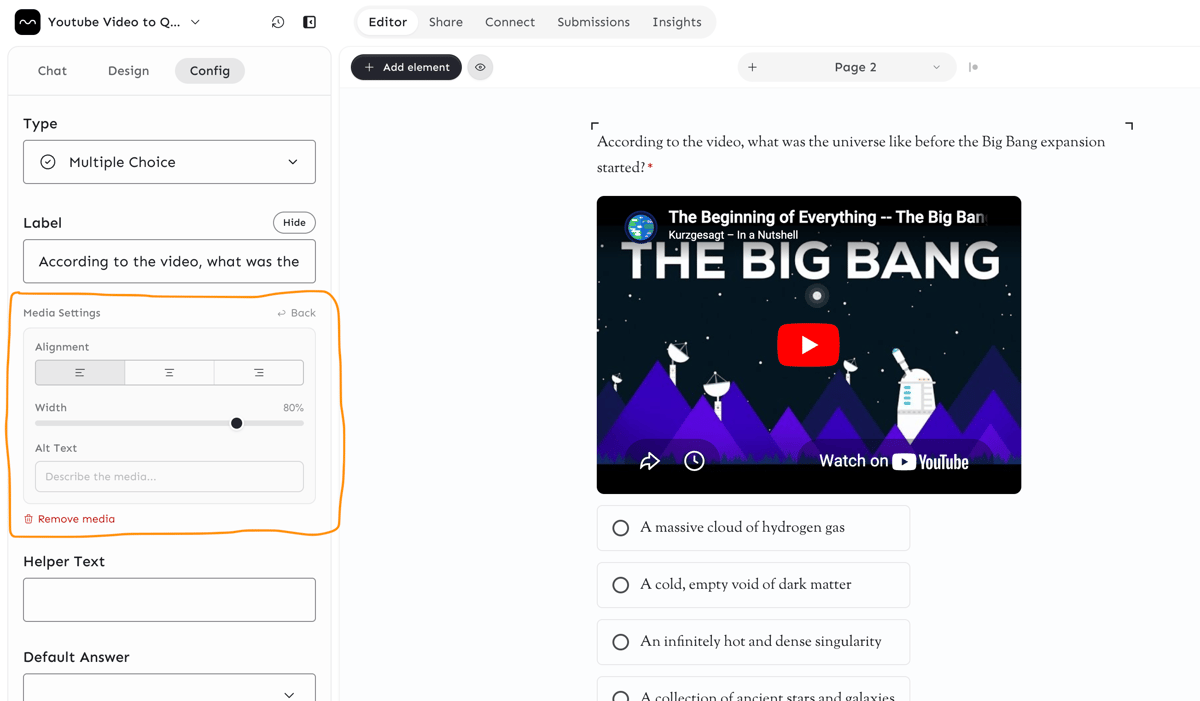
Click the red trash icon on the media preview, or open settings and click Remove media.
Tip: For quiz questions, use images to create visual identification questions — upload a photo and ask "What is this?" with multiple choice answers.