 Minform
Translate Forms to Any Language
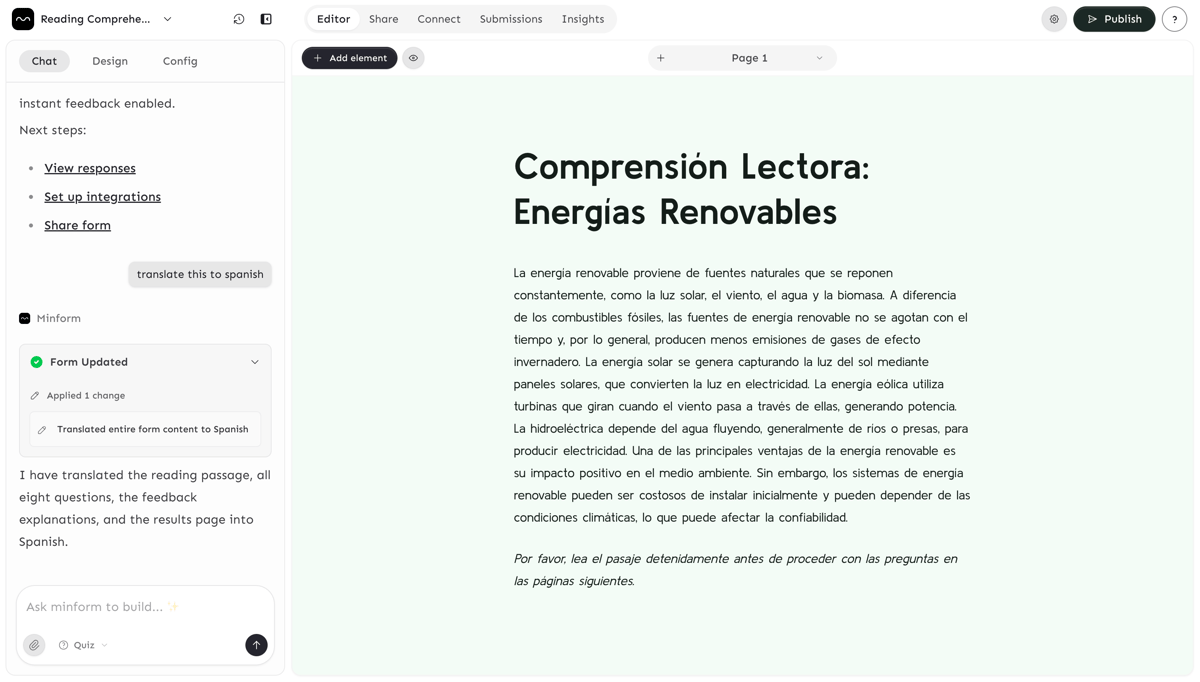
Minform lets you translate your entire form into 40+ languages using AI — no manual editing required. Whether you're running a multilingual survey, collecting feedback from a global audience, or distributing quizzes in different regions, you can translate your form in seconds with a single prompt in the AI Chat.
Translation uses AI credits. The cost is calculated based on the number of fields being translated (roughly 0.2 credits per translatable field). Check the AI Credit System doc for details on your plan's credit allowance.
How to Translate a Form
- Open your form in the editor.
- Click the AI Chat icon in the left sidebar to open the AI assistant.
- Type a translation request in plain English. For example:
Translate this form to SpanishConvert the entire form to GermanTranslate page 1 to FrenchTranslate this form to Arabic
- The AI will process the translation page by page, showing real-time progress as each page is completed.
- Once done, your form content updates immediately in the editor. Review the result and publish when ready.
What Gets Translated
The AI translates all respondent-facing text in your form:
Element Content
- Question titles and labels
- Help text / descriptions below fields
- Text blocks and rich content (HTML formatting is preserved)
- Dropdown and multiple-choice option labels
- Opinion scale labels (left, center, right)
- Custom quiz feedback text
Form Settings
- Navigation buttons — "Next", "Back", "Submit", "Start"
- Form meta title and description
What Does NOT Get Translated
- Internal form name (only visible to you in the dashboard)
- Internal page names
- Variable names and @mentions (these are technical references and stay in English)
- Conditional logic rules and calculator formulas
- Integration settings (webhooks, email templates, etc.)
Translate Specific Pages
You don't have to translate the entire form at once. If you only need certain pages in another language, just tell the AI which page to translate:
Translate page 2 to JapaneseTranslate the ending page to Portuguese
This is useful when you want to keep some pages in the original language or translate different sections independently.
Translating RTL Languages
For right-to-left languages like Arabic, Hebrew, or Persian, you should also enable RTL layout after translating:
- After the translation is complete, go to the Design tab in the right sidebar.
- Scroll down and toggle Enable RTL Layout.
- This flips the entire form direction — text aligns right, navigation arrows reverse, and the layout reads naturally for RTL languages.
Tips for Best Results
- Be specific about the target language. Say
Translate to Brazilian Portugueseinstead of just "Portuguese" if you need a regional variant. - Review after translating. AI translations are high quality, but it's always good to review domain-specific terminology relevant to your form.
- Use Form History to undo. If you need to revert to the original language, you can restore a previous version from Form History.
- Translate a duplicate for multilingual forms. Since translation replaces the original text, duplicate your form first if you need the same form in multiple languages. You can then share different links for each language version.
- Enable RTL for Arabic, Hebrew, and Persian. Don't forget to toggle the RTL layout switch in the Design tab after translating to these languages.