 Minform
How to Protect Forms with CAPTCHA
Minform uses Cloudflare Turnstile to protect your forms from spam and bot submissions. Turnstile is a privacy-friendly CAPTCHA alternative — it verifies visitors without intrusive puzzles in most cases.
When enabled, a small verification widget appears on the last page of your form. Submissions are blocked unless the challenge is passed.
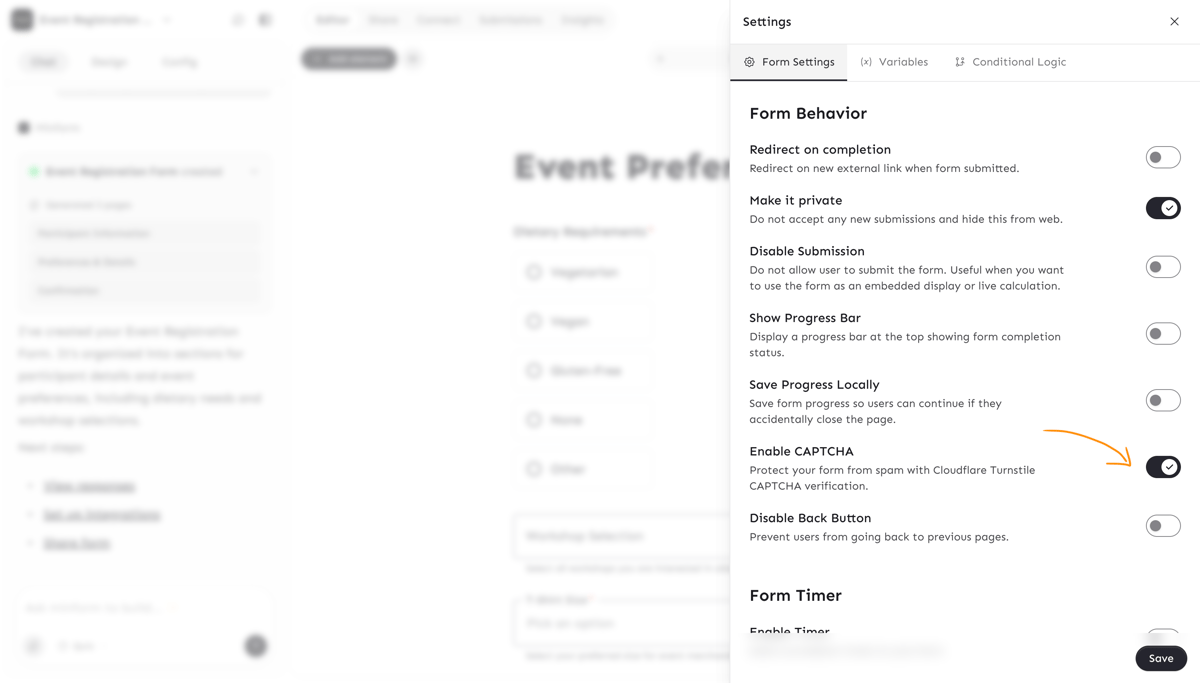
1. Enable CAPTCHA in Form Settings
- Open your form in the Editor.
- Click the Settings icon in the top toolbar (gear icon).
- Go to the Configurations tab.
- Under Form Behavior, toggle on Enable CAPTCHA.
- Save your changes.
That's it — your form is now protected.
2. How It Works for Respondents
Once CAPTCHA is enabled:
- The Turnstile widget appears on the last page of your form, just above the submit button.
- In most cases, the verification completes automatically in the background — respondents won't need to solve a puzzle.
- If Cloudflare detects suspicious behavior, it may present a quick interactive challenge.
- The form cannot be submitted until the CAPTCHA is completed.
The widget adapts to your form's theme (light or dark mode) automatically.
3. When to Use CAPTCHA
CAPTCHA is recommended when:
- Your form is publicly shared and receives spam submissions.
- You're running a contest or giveaway form that bots might target.
- You want an extra layer of protection on forms that collect sensitive data.
You may want to keep it disabled for:
- Internal team forms where all respondents are trusted.
- Forms where you want the absolute minimum friction for respondents.