 Minform
How to customize error messages in minform
Every input on your form shows a default error message when a respondent skips a required field or enters an invalid value (for example "This is required" or "Please enter a valid email address"). Minform lets you replace any of these with your own text, so they match your brand voice or your form's language.
Steps to customize
- Open your form in the editor
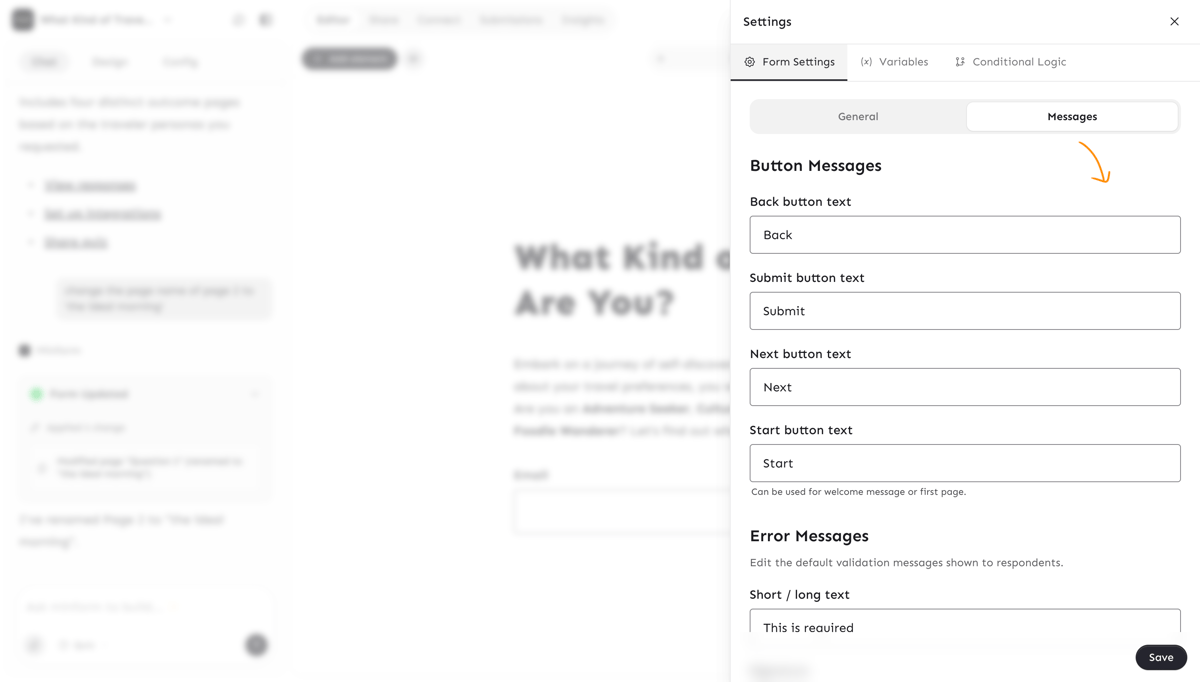
- Click the gear icon to open Form Settings
- Switch to the Messages tab
- Scroll to the Error Messages section. Each input is pre-filled with the current default. Replace any of them with your own text.
- Click Save
Which messages can I customize?
Each label in the Error Messages section maps to an input element type. The message is shown when that element fails validation.
Required field errors (shown when the field is required and left empty):
- Short / long text
- Signature
- Dropdown
- Multiple choice / picture choice
- Multi-select
- File upload
- Audio
- Rating / slider / opinion scale
- Date
- Time
Format errors (shown when the value is in the wrong format):
- Email: shown when the value is not a valid email address
- URL: shown when the value is not a valid URL
- Number: shown when the value is not a valid number
- Phone number: shown when the value is not a valid phone number
Reset a message to default
To restore the built-in message for any field, clear the input completely and save. The original message will be used the next time that error is shown.